Here at Winningtemp, we believe that everyone should enjoy a bit of positive feedback once in a while. The Praise feature helps with that, is a fun way to encourage positive feedback in your company, and, at the same time, increases team spirit.
Who can access the settings?
- System Administrator
- Support
Get started: Managing praise settings
You will be able to manage your organisation's praise settings and configure them to suit you best.
- Select Administration in the side menu
- Click System & templates
- Navigate to System > Praise
Praise Setting: Activate / Inactivate Praise
The Praise feature is active by default. If you wish to change the settings, you can easily toggle “Enable Praise” to keep the feature active or inactive for your organisation.
Praise Setting: Recent Activities
Choose your settings for how you wish to display Praises in Recent Activities in the User Overview page.
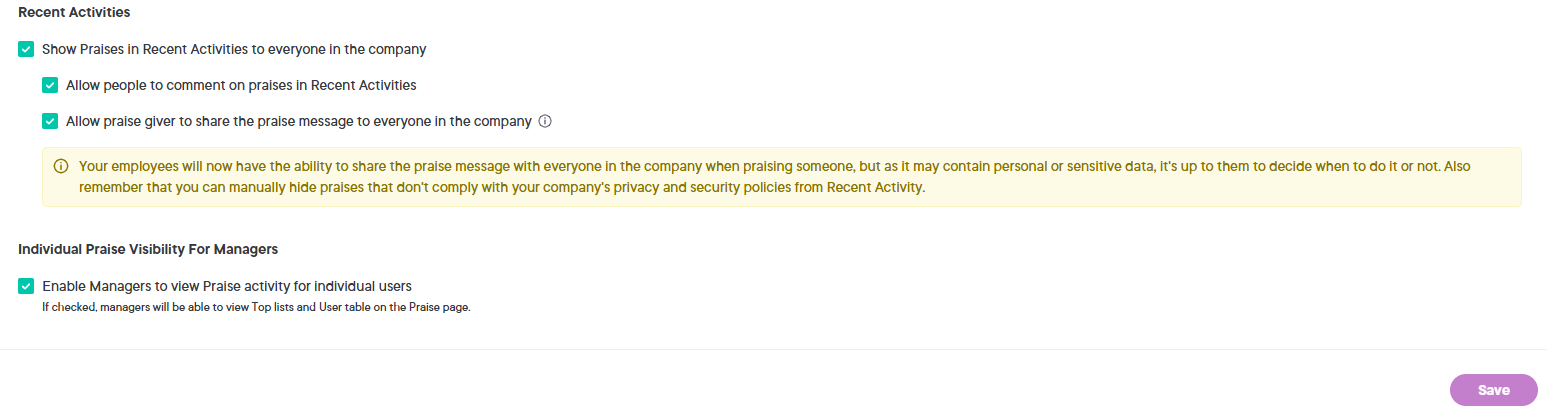
Setting 1: Activate / Deactivate praises in recent activities
If you want to display Praises in recent activities on the Overview page, check the box Show Praises in Recent Activities to everyone in the company. You can also deactivate praises from recent activities by unchecking the box.
Setting 2: Comments in praises in recent activities
Enabling comments on Recent Activities will make the overview even more engaging. People can comment on each other's praise, creating a fun and interactive environment.
Setting 3: Allow employees to share their praise message
Here you can decide whether to show all the information in the praise message or exclude it. Allow the praise giver to share the praise message with everyone in the company. The person giving the praise will have the final say on whether to display the praise message.
Setting 4: Allow managers to see individual praise
Enable managers to see data about praise given to or received by their team members. Read more: Track praise activity
Add company values
You can easily add your values to Winningtemp and make the Praise functionality even more personal. For example, you can add company values to promote workplace culture. Here's how you do it:
- Select Administration in the side menu
- Click System & templates
- Click on Templates
- Under Praise and Basic values, click Create values
- Write a heading for your new value
- Add a description
- Upload an image and choose a colour
- Click Save